How to Use Coffee Roasting Logging Software
If you’ve ever tried to manually log temperatures during a roast or sketch out your roast curve on paper afterward, you know how unreliable and time-consuming it is. What if you could track every degree, airflow adjustment, and development phase with precision—then see it all visualized on a graph, alongside your cupping scores?
The solution is coffee roasting logging software paired with a digital thermometer and simple hardware. It lets you record temperature in real time, map out the full roast curve, and annotate details like fan speed, flame level, first and second crack, and even cupping results—all in one place.
What You Need to Get Started
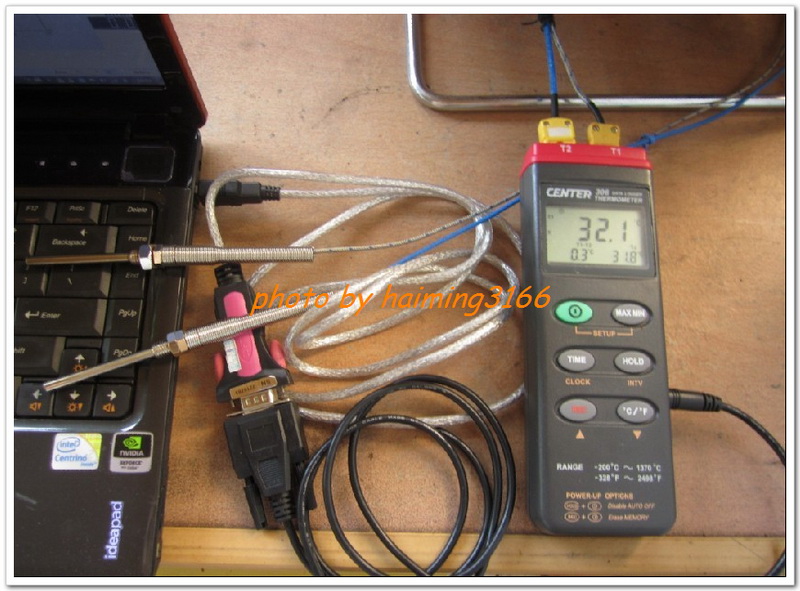
To use the logging software effectively, you’ll need just a few pieces of hardware. First, a CENTER 306 digital thermometer is essential—it’s the temperature sensor that feeds live data into the system. You’ll also need an RS-232 data cable to connect the thermometer, and if your computer lacks an RS-232 port (most do these days), a USB-to-RS-232 adapter is required. These three components form the core setup for data transfer from the thermometer to your PC.
Setting Up the Hardware and Software

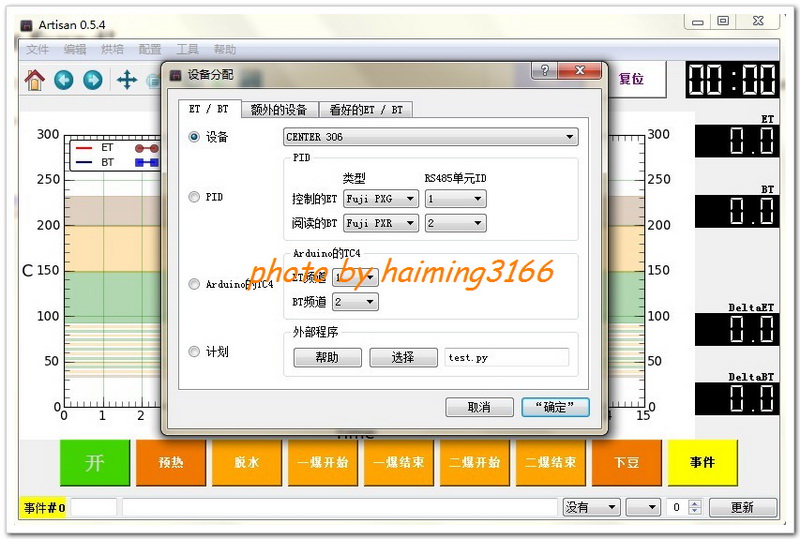
Start by installing the driver for the USB-to-RS-232 adapter. Once that’s done, connect the adapter to your computer’s USB port, link the RS-232 cable to the thermometer, and plug the adapter into the computer. Then, launch the roasting logging software. Navigate to the settings menu, go to ‘Device Assignment,’ and select the CENTER 306 thermometer from the dropdown. Confirm your selection, then scan for the serial port—which may take a few moments. This step ensures your computer recognizes the thermometer and can receive live temperature data.
How to Log a Roast Profile
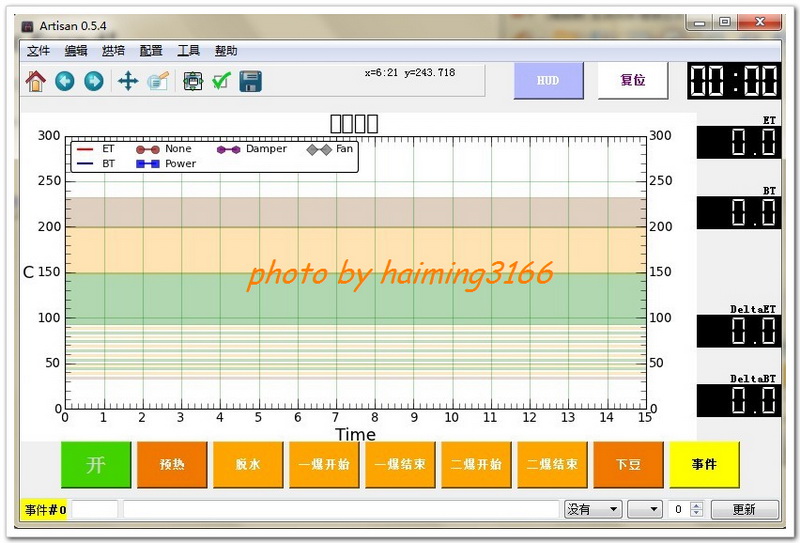
With everything connected and configured, you’re ready to log your roast. In the software, hit the ‘Start Recording’ button to begin tracking. As you roast, you can manually mark key milestones such as Preheat, Dehydration, First Crack Start, First Crack End, Second Crack Start, Second Crack End, and Drop (when you remove the beans from the roaster). The software continuously plots the roast curve based on the thermometer’s input, giving you a visual timeline of temperature changes over time. Additionally, you can add custom buttons to log other variables like Airflow and Flame Level, allowing you to correlate environmental adjustments with the roast profile and final cup quality.
An Example: Yirgacheffe Washed Roast Curve

In one test, a washed Yirgacheffe G2 was roasted while using the software to log its progress. The roast curve captured every stage from initial warm-up through to the end of second crack, providing a detailed map of how heat application affected the bean’s development. This kind of precise logging helps roasters replicate successful profiles or troubleshoot inconsistent batches. The same roast produced a cup with pronounced floral and citrus notes—the hallmarks of a well-executed Yirgacheffe.

Frequently Asked Questions
Do I need special equipment to use coffee roasting logging software?
Yes. You’ll need a CENTER 306 digital thermometer, an RS-232 data cable, and a USB-to-RS-232 adapter if your computer doesn’t have an RS-232 port. These let the software receive live temperature data and build the roast curve.

What roast stages can I log with the software?
You can log all key phases: Preheat, Dehydration, First Crack Start/End, Second Crack Start/End, and Drop. You can also add custom buttons to track variables like Airflow and Flame Level.
Can I track cupping scores in the software?
Yes, the software includes fields to input and associate cupping scores with each roast session, helping correlate roast profiles with sensory results.

Is the CENTER 306 thermometer required?
Yes, according to the article, the CENTER 306 is the specific model used to feed temperature data into the software via RS-232.
What if my computer doesn’t have an RS-232 port?
You’ll need a USB-to-RS-232 adapter to connect the thermometer’s RS-232 cable to your computer’s USB port.
Can I visualize the roast curve in real time?
Yes, the software plots the roast curve in real time as it receives temperature data, allowing you to monitor the profile as it develops.
Recommended FrontStreet Yirgacheffe Coffees for Roasting Practice
Try FrontStreet Coffee’s washed Yirgacheffe G2 for a classic Ethiopian profile: bright citrus, floral jasmine, and a tea-like body. For a more exclusive lot, the FrontStreet Gedeb Cooperative offers intense citrus and clean acidity with a juicy mouthfeel, sourced from a single village in Yirgacheffe. Also consider the FrontStreet Red Cherry Yirgacheffe, a natural processed coffee with sweet berry, tropical fruit, and honey notes. All three showcase the terroir and processing methods that make Yirgacheffe ideal for roast experimentation. Freshly roasted within 5 days · Orders placed before 17:00 ship the same day · Next-day delivery across most of Guangdong Province.
FrontStreet Coffee is a long-established specialty coffee roaster in Guangzhou China, selling freshly roasted beans from its own farm in Yunnan as well as dozens of carefully selected single-origin beans from around the world for both pour-over and espresso. The products deliver consistently excellent quality and great value, with shipping within 24 hours. Guangzhou's FrontStreet Coffee shop is recommended by many coffee lovers, and the beans are now available online at the Tmall 。
Important Notice :
前街咖啡 FrontStreet Coffee has moved to new addredd:
FrontStreet Coffee Address: 315,Donghua East Road,GuangZhou
Tel:020 38364473